
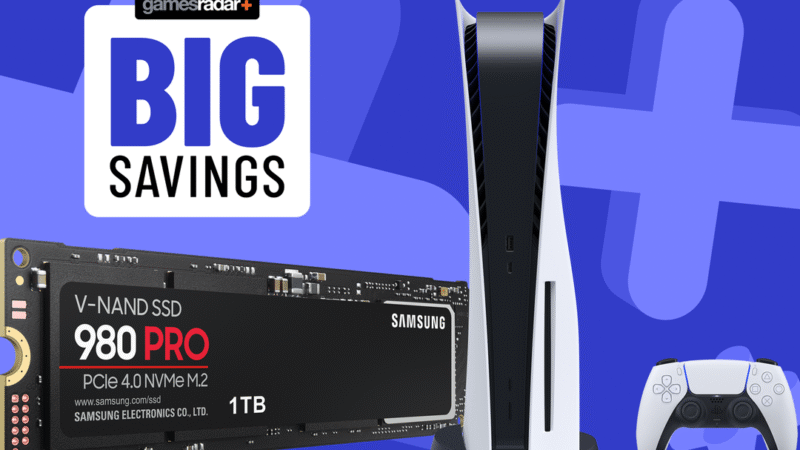
Expanding your PS5’s storage is essential for gamers eager to dive into massive titles like Call of Duty: Warzone and the highly anticipated GTA 6. With limited built-in capacity, managing game installations can quickly become a challenge. This guide provides a straightforward solution——ensuring you have ample space without compromising performance. Whether you’re new to console upgrades or looking for a refresher, we’ll walk you through choosing the right SSD, installation steps, and optimizing your system. Keep your load times fast and your library full with this essential upgrade process designed for seamless next-gen gaming.
Optimize Your PS5 for Next-Gen Gaming: Expandable Storage Solutions
Expanding your PlayStation 5’s internal storage is essential for modern gaming, especially with massive titles like Call of Duty: Warzone and the highly anticipated GTA 6. As both games require substantial space—Warzone already exceeding 200GB and GTA 6 expected to surpass it—managing storage becomes a top priority. This article outlines how to efficiently upgrade your PS5 storage to meet the demands of these games. A complete overview of compatible hardware, installation steps, and performance benchmarks are covered in detail below as part of How to Upgrade Your PS5 Storage for Warzone & GTA 6 (Easy Guide).
Understanding PS5 Storage Limitations
The PlayStation 5 comes with an 825GB internal SSD, but only approximately 667GB is available for user data after system software and pre-installed apps. This limited space becomes a bottleneck when downloading AAA titles like Warzone, which regularly expands due to updates, and with GTA 6 projected to require over 250GB at launch. Without additional storage, users may need to frequently delete and re-download games, disrupting gameplay. Recognizing these restrictions is the first step in How to Upgrade Your PS5 Storage for Warzone & GTA 6 (Easy Guide), allowing gamers to plan an effective storage strategy.
Choosing the Right NVMe SSD for Your PS5
Sony allows users to install compatible M.2 NVMe SSDs directly into the PS5’s expansion slot. When selecting a drive for How to Upgrade Your PS5 Storage for Warzone & GTA 6 (Easy Guide), ensure the NVMe SSD meets PS5 requirements: PCIe Gen4 x4 M.2 SSD with sequential read speeds of at least 5,500MB/s. Recommended models include the Samsung 980 Pro, WD Black SN850, and Seagate FireCuda 530. The drive should also be between 250GB and 4TB in capacity and have a heatsink or thermal solution to prevent overheating. Choosing the correct SSD ensures high-speed loading times and sustained performance.
Step-by-Step Installation of the M.2 SSD
Installing an M.2 SSD into the PS5 is a user-friendly process outlined clearly in How to Upgrade Your PS5 Storage for Warzone & GTA 6 (Easy Guide). First, power off and unplug the console. Remove the side panel to access the M.2 expansion bay. Loosen the screw in the bay, insert the NVMe SSD at a slight angle, then press it down and secure it with the screw. Replace the cover and restart the console. Navigate to Settings > Storage > Storage Management > M.2 SSD > Format as Console Storage. After formatting, the new drive will be ready for game installations, including heavy-hitters like Warzone and GTA 6.
Transferring Games from Internal to Expanded Storage
After upgrading the PS5’s storage, the next step in How to Upgrade Your PS5 Storage for Warzone & GTA 6 (Easy Guide) is transferring games. Access Settings > Storage > Storage Management > System Storage > Manage Games and Apps. Select Warzone or other titles, choose Move, and select the newly installed M.2 SSD as the destination. The transfer preserves game progress and settings. For GTA 6, once released, installation can be directed straight to the expanded drive. This ensures fast loading and seamless access without overburdening the internal SSD.
Performance Comparison: Internal vs M.2 SSD Storage
When evaluating storage performance as part of How to Upgrade Your PS5 Storage for Warzone & GTA 6 (Easy Guide), benchmarks show that a high-speed NVMe SSD performs equally to or better than the PS5’s internal drive. Both support the same I/O architecture, ensuring consistent load times and gameplay responsiveness. Using a top-tier NVMe drive can even improve system-level performance during large open-world streaming in games like Warzone and the upcoming GTA 6. Below is a comparison of storage options:
| Storage Type | Capacity Range | Read Speed | PS5 Compatibility | Ideal for GTA 6? |
| Internal SSD | 667GB (usable) | 5,500 MB/s | Yes | Limited space |
| M.2 NVMe SSD (Recommended) | 1TB – 4TB | 5,500–7,300 MB/s | Yes (if compliant) | Yes |
| External USB HDD | 1TB – 8TB | 100–200 MB/s | Yes (for storage only) | No (slow loading) |
Frequently Asked Questions
What type of SSD do I need to upgrade my PS5 for Warzone and GTA 6?
To upgrade your PS5 storage for games like Warzone and the upcoming GTA 6, you need an M.2 NVMe SSD with a minimum speed of 5,500 MB/s. The SSD must also fit within the PS5’s physical constraints—up to 110mm in length and with an heatsink or heatsink solution to prevent overheating.
How do I install an M.2 SSD in my PS5?
To install an M.2 SSD in your PS5, first power off the console and remove the side panels. Locate the expansion slot under the cover, insert the SSD at a slight angle into the M.2 slot, secure it with the screw using the provided tray, and reattach the panel. After reassembly, power on the console and format the drive through the settings menu.
Will upgrading my PS5 storage improve game performance in Warzone and GTA 6?
Yes, upgrading to a compatible high-speed NVMe SSD can significantly enhance load times, texture streaming, and overall performance in demanding games like Warzone and the highly anticipated GTA 6. This ensures smoother gameplay and faster access to large open-world environments.
Can I move my existing games to the new SSD after installation?
Yes, once your new M.2 SSD is installed and recognized by the PS5, you can transfer games from the internal storage using the storage management tool in the settings. Simply select the games, such as Warzone, and choose to copy or move them to the new drive for immediate use.
