
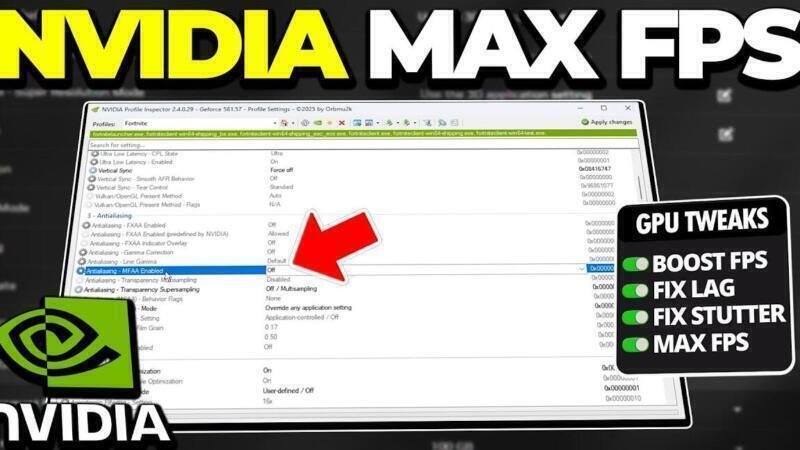
Achieving peak gaming performance in 2025 requires more than just high-end hardware—it demands optimized software configurations. The play a crucial role in unlocking your graphics card’s full potential. With constant driver updates and evolving game engines, knowing which settings to tweak can mean the difference between smooth gameplay and frustrating lag. From NVIDIA’s Control Panel to AMD’s Radeon Software, this guide dives into the essential adjustments that maximize frame rates, reduce input lag, and enhance visual clarity. Whether you’re a competitive gamer or a performance enthusiast, mastering these settings ensures you stay ahead in the ever-advancing world of gaming technology.
Optimizing GPU Performance: Best GPU Driver Settings (NVIDIA & AMD) for Max FPS in 2025
Achieving peak gaming performance in 2025 requires more than just high-end hardware—it demands precise configuration of GPU driver settings. The Best GPU Driver Settings (NVIDIA & AMD) for Max FPS in 2025 represent a refined balance between visual fidelity and frame rate efficiency, tailored to modern game engines and hardware capabilities. As both NVIDIA and AMD continue advancing their driver ecosystems with AI-driven optimizations and dynamic resource allocation, understanding these configurations is crucial for gamers and professionals alike. This guide provides a detailed breakdown of essential settings on both platforms, ensuring users extract maximum performance from their GPUs.
NVIDIA Control Panel: Key Settings for Maximizing FPS in 2025
The Best GPU Driver Settings (NVIDIA & AMD) for Max FPS in 2025 begin with a thorough optimization of the NVIDIA Control Panel. Start by setting Preferred refresh rate to Highest available and ensure Vertical sync is disabled to minimize input lag. Enable G-SYNC when using compatible monitors to eliminate screen tearing without sacrificing responsiveness. Set Power management mode to Prefer maximum performance to prevent clock throttling during gameplay. Additionally, configure Texture filtering – Quality to High performance and disable Threaded optimization only if running older titles with compatibility issues. Finally, enable Low Latency Mode to Ultra, which reduces CPU-GPU pipeline delays—especially effective in competitive esports titles.
AMD Radeon Software: Performance-Tuned Driver Adjustments
For AMD users, achieving the Best GPU Driver Settings (NVIDIA & AMD) for Max FPS in 2025 involves navigating the Radeon Software dashboard with precision. In the Graphics profile, set Radeon Anti-Lag and Radeon Boost to On—two features designed to reduce input latency and dynamically scale resolution during motion, respectively. Adjust Wait for Vertical Refresh to Always Off unless VRR is unsupported. Set Texture Filtering Quality to Performance and disable Enhanced Sync unless G-Sync compatibility issues arise. Crucially, ensure Power Limit is maxed out via the Tuning tab, allowing sustained boost clocks. For maximum FPS, use Graphics Profile per-game presets optimized for low latency and high frame rates, particularly beneficial for 144Hz+ displays.
Driver Updates and Game Profiles: Why They Matter in 2025
Staying current with driver updates is a cornerstone of the Best GPU Driver Settings (NVIDIA & AMD) for Max FPS in 2025. Both NVIDIA and AMD release Game Ready and Adrenalin drivers monthly, which include performance enhancements, bug fixes, and profile optimizations tailored to newly launched or updated games. These drivers often unlock up to 10–15% additional FPS through low-level shader compilation improvements and memory management tweaks. Enabling automatic updates ensures games benefit from pre-configured optimization profiles. Moreover, AI-driven features like NVIDIA’s WhisperMode II and AMD’s HYPR-RX use updated profiles to automate performance and thermal balancing, making regular driver maintenance essential for peak FPS output.
Overclocking and Voltage Tuning: Pushing Hardware to Its Limits
Advanced users seeking the Best GPU Driver Settings (NVIDIA & AMD) for Max FPS in 2025 can further enhance performance via overclocking and voltage tuning. On NVIDIA cards, tools like MSI Afterburner allow increasing core clock (+100 to +150 MHz) and memory clock (+300 to +500 MHz) within thermal limits. Use stress tests such as FurMark or 3DMark to validate stability. For AMD GPUs, the Adrenalin software provides integrated tuning with voltage curves—undervolting can improve efficiency and thermal headroom, enabling sustained boost clocks. Always monitor temperatures (ideally below 75°C under load) and increment adjustments gradually. Proper overclocking, when combined with optimal driver settings, can unlock significant FPS gains without hardware upgrades.
In-Game vs. Driver-Level Settings: Finding the Ideal Balance
The Best GPU Driver Settings (NVIDIA & AMD) for Max FPS in 2025 require synergy between in-game graphics options and driver-level configurations. While in-game settings like shadow quality, draw distance, and ambient occlusion impact performance directly, driver-level settings act as global overrides. For instance, forcing Antialiasing to Off in the NVIDIA control panel affects all games unless overridden per-profile. Conversely, using application-controlled settings allows flexibility. Balance is achieved by setting global defaults conservatively (e.g., disable FXAA, set power to max performance) and fine-tuning per-game. Always prioritize settings that impact FPS most—such as resolution scaling, V-Sync, and shader caching—while preserving visual clarity where performance cost is minimal.
| Setting | NVIDIA Recommendation | AMD Recommendation |
| Vertical Sync | Off (Use G-SYNC if available) | Off (Enable FreeSync if supported) |
| Power Management | Prefer maximum performance | Max Power/Performance Tuning |
| Texture Filtering | High performance | Performance |
| Low Latency Mode | Ultra | Anti-Lag On |
| Refresh Rate | Highest available | Match monitor max |
Frequently Asked Questions
What are the best NVIDIA control panel settings for maximum FPS in 2025?
To achieve maximum FPS with NVIDIA GPUs in 2025, set Power Management Mode to Prefer Maximum Performance, enable Low Latency Mode to Ultra, and set Texture Filtering – Quality to High Performance. Additionally, ensure Vertical Sync is off and Preferred Refresh Rate is set to Highest. These settings help reduce input lag and optimize performance in modern gaming titles.
How should I configure AMD Radeon settings for optimal FPS in 2025?
For optimal frame rates on AMD GPUs, navigate to the Radeon Software and enable Radeon Boost and FidelityFX Super Resolution when supported. Set Texture Filtering to Performance and disable Surface Format Optimization. Also, ensure Wait for Vertical Refresh is set to Always Off and use GPU Workload set to Graphics for gaming. These changes prioritize performance over visual fidelity.
Should I update my GPU drivers for better FPS in 2025 games?
Yes, keeping your GPU drivers updated is crucial for achieving maximum FPS in 2025. Game-ready drivers from NVIDIA and AMD include performance optimizations, bug fixes, and support for new titles and features like DLSS 4 or FSR 4. Always download drivers directly from the official websites to ensure stability and compatibility.
Is it better to use default or custom GPU settings for high FPS?
Custom GPU driver settings typically deliver higher FPS compared to default configurations, as they allow fine-tuning for specific games and hardware. Adjusting settings like power management, anti-aliasing, and shader caching can significantly boost performance. However, defaults are safe for general use, while custom profiles are ideal for enthusiasts seeking peak gaming performance.
